Boot
Use this menu to configure Boot settings.
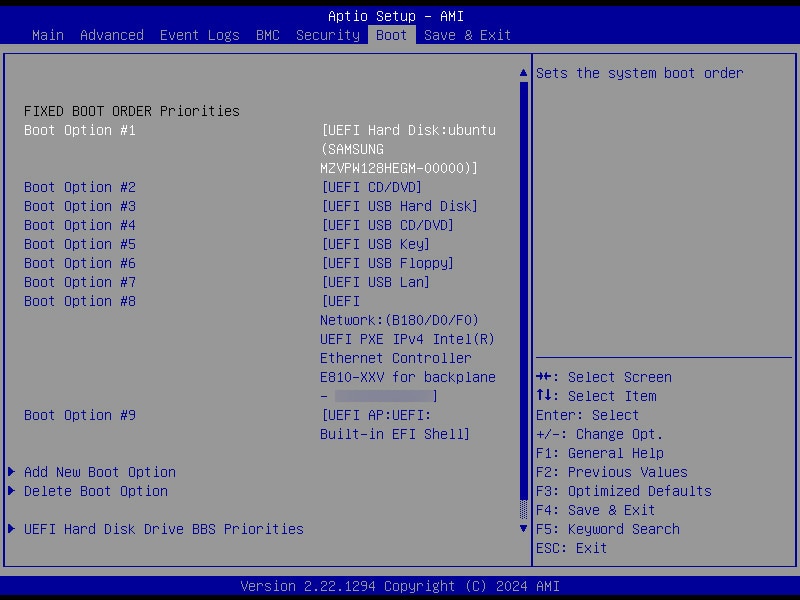
Figure 48. Boot Settings
FIXED BOOT ORDER Priorities
Use this feature to prioritize the order of a bootable device from which the system will boot. Press <Enter> on each item sequentially to select the device.
-
Boot Option #1 – Boot Option #9
Use this feature to add a new boot option to the boot priority features for system boot.
Note: This submenu is available when any storage device is detected by the BIOS.
Add boot option
Use this feature to specify the name for the new boot option.
Path for boot option
Use this feature to enter the path for the new boot option in the format fsx:\path\filename.efi.
Boot option File Path
Use this feature to specify the file path for the new boot option.
Create
After setting the name and the file path for the boot option, press <Enter> to create the new boot option in the boot priority list.
Use this feature to select a boot device to delete from the boot priority list.
Delete Boot Option
Use this feature to remove an EFI boot option from the boot priority list.
Use this feature to set the system boot order of detected devices.
Use this feature to set the system boot order of detected devices.
Use this feature to set the system boot order of detected devices.
Use this feature to set the system boot order of detected devices.