Recovering the Main BIOS Block with a USB Device
This feature allows the user to recover the main BIOS image using a USB device without additional utilities used. A USB flash or media drive can be used for this purpose. However, a USB hard disk drive cannot be used for BIOS recovery at this time.
Note: The USB flash drive doesn't have to be bootable; however, it has to be formatted to FAT16/FAT32 file system.
To perform UEFI BIOS recovery using a USB device, follow the instructions below.
Use a different machine to download the BIOS package for your motherboard or your system from the product page available on our website at www.supermicro.com.
-
Extract the BIOS package to a USB device. Copy the BIOS ROM file [BIOSname#.###] that is included in the BIOS package into the Root "\" directory of the USB device.
-
Rename the BIOS ROM file [BIOSname#.###] in the root directory to SUPER.ROM for BIOS recovery use.
Note: Before recovering the main BIOS image, confirm that the SUPER.ROM file you have is the same version or a close version meant for your motherboard.
-
Insert the USB device that contains the SUPER.ROM file into the system before you power on the system or when the following screen appears.

Figure 55. Startup Screen
-
After locating the SUPER.ROM file, the system will enter the BIOS Recovery menu. Select the item "Proceed with flash update" and press the <Enter> key.

Figure 56. BIOS Recovery Menu
-
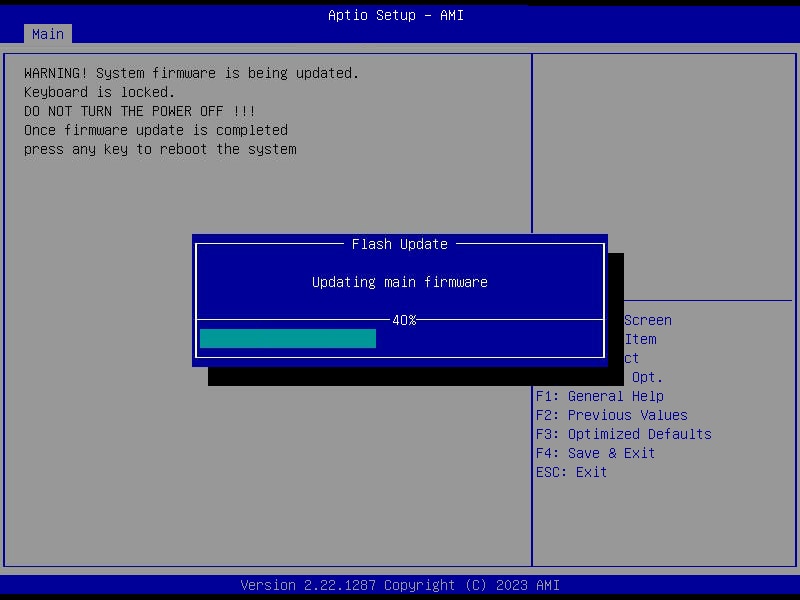
You will see the BIOS recovery progress as shown in the screen below. Wait for the BIOS flashing process to complete.
Note: Do not interrupt the BIOS flashing process until it is complete.
Figure 57. BIOS Recovery In Progress Screen
-
After the BIOS recovery process is complete, press any key to reboot the system.


Note: After BIOS recovery, it is recommended that you update your BIOS. Please refer to the Updating BIOS section for more information.